Last updated October 15, 2026.
This guide shows how to put a second administrator and phishing-resistant sign-in in front of the most dangerous things your Intune admins can do, such as wiping devices or pushing scripts. It’s written for the person who owns Intune and its admin roles, and it takes about two hours for a first pass.
After the Stryker incident in March, CISA recommended exactly these controls for endpoint management systems: least privilege, phishing-resistant multifactor authentication (MFA) for privileged accounts, and Multi Admin Approval for sensitive changes. I covered the incident in the March issue of MDM Monthly. This is the how-to behind it.
Before you start
- At least two administrator accounts in the tenant. Multi Admin Approval needs a second person, and an admin can’t approve their own request.
- An Entra role that can create Conditional Access policies, such as Conditional Access Administrator.
- A way to recover if you lock yourself out: two emergency access (break-glass) accounts that are excluded from every policy below.
- Intune licenses for the people who will approve requests. Microsoft says unlicensed admins can be allowed to participate, but that setting is irreversible, so leave it off unless you need it.
Step 1: List who can do what
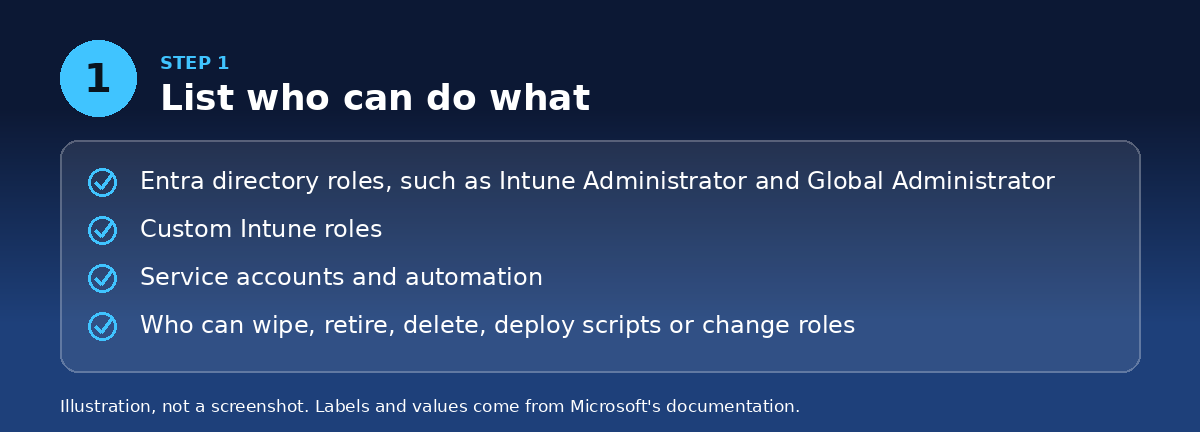
Write down every person, service account and automation that can wipe, retire or delete devices, deploy apps or scripts, or change roles. Include Entra directory roles such as Intune Administrator and Global Administrator, and any custom Intune roles. Remove access nobody needs. This list is your scope for everything that follows.
Step 2: Register phishing-resistant methods first
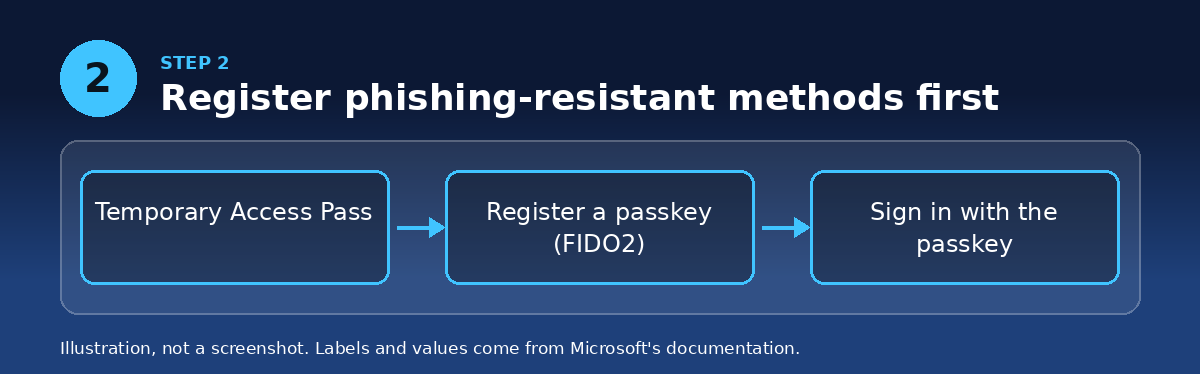
Before any policy goes on, every admin needs a phishing-resistant method registered, such as a passkey (FIDO2). Microsoft’s warning is blunt: turning on the policy before administrators register risks locking you out of your tenant. A Temporary Access Pass lets an admin register a passkey when they have no strong method yet.
Step 3: Require phishing-resistant MFA for admins
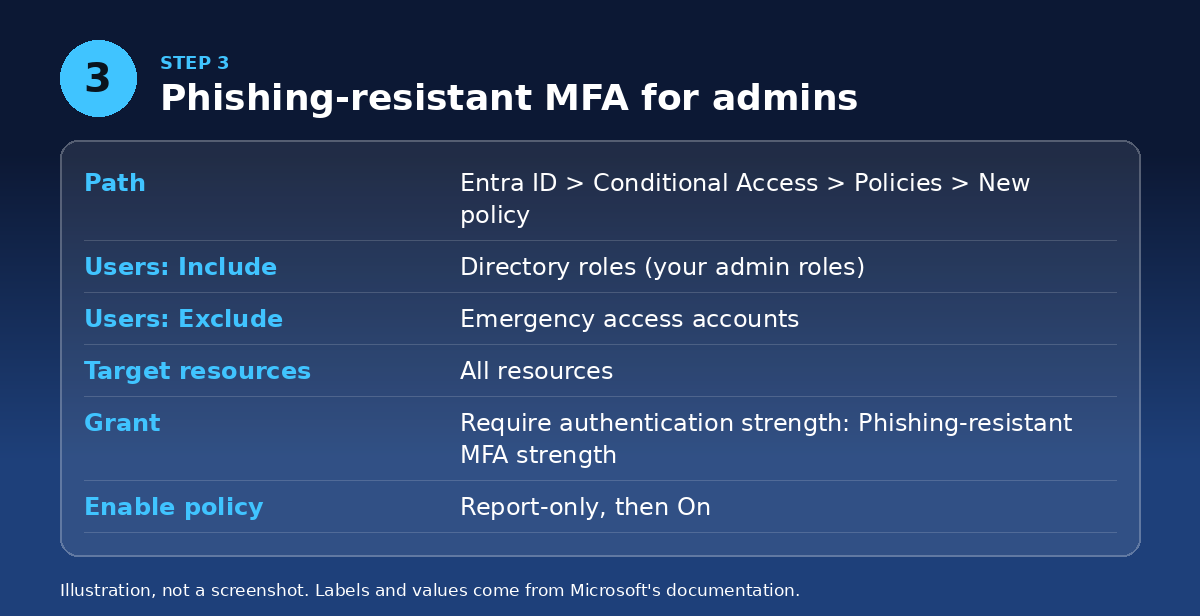
- In the Microsoft Entra admin center, go to Entra ID > Conditional Access > Policies > New policy.
- Under Assignments, include Directory roles and select the admin roles from your list. Microsoft recommends at least roles like Global Administrator, Security Administrator, Helpdesk Administrator and Privileged Role Administrator.
- Exclude your emergency access accounts.
- Under Target resources, select All resources.
- Under Grant, choose Require authentication strength and select Phishing-resistant MFA strength.
- Set Enable policy to Report-only and select Create.
Two cautions. Microsoft says Conditional Access applies to built-in roles and isn’t enforced for custom or administrative unit-scoped roles. So if some of your Intune admins hold only an Intune role, put them in a security group and include that group in the policy as well. And service accounts and service principals aren’t blocked by user-scoped policies, so move automation to managed identities where you can.
After a week of report-only results with no surprises, change Enable policy to On.
Step 4: Build the approver group
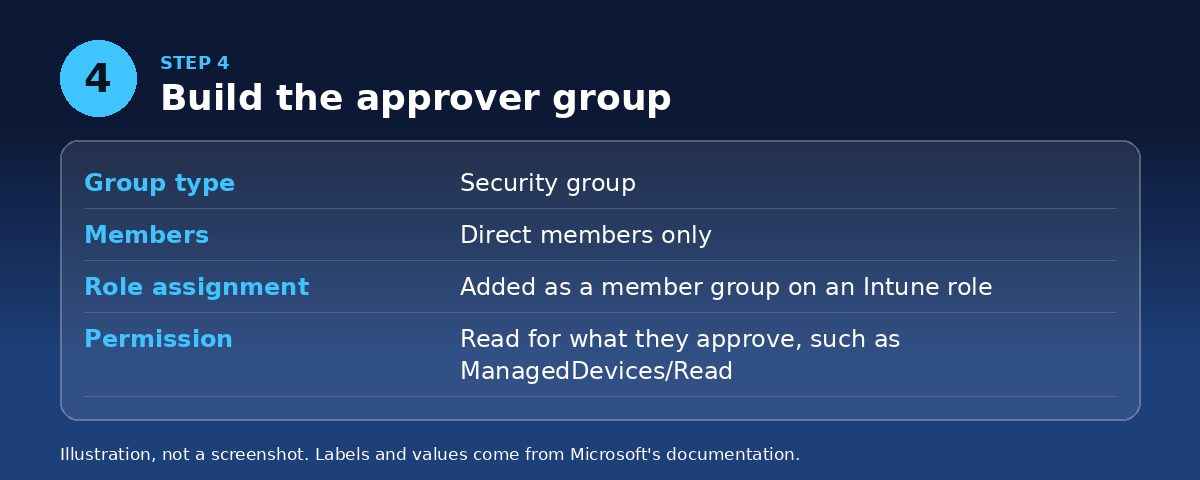
Multi Admin Approval is strict about its approver group:
- Create a security group. Microsoft 365 groups, distribution lists and mail-enabled security groups silently fail.
- Add approvers as direct members. Nested groups can behave unreliably.
- In Tenant administration > Roles, add that group as a member group on at least one Intune role assignment. If you skip this, Intune periodically removes the members.
- Make sure approvers hold the Read permission for what they approve, for example ManagedDevices/Read to approve a device delete.
Step 5: Create the access policies
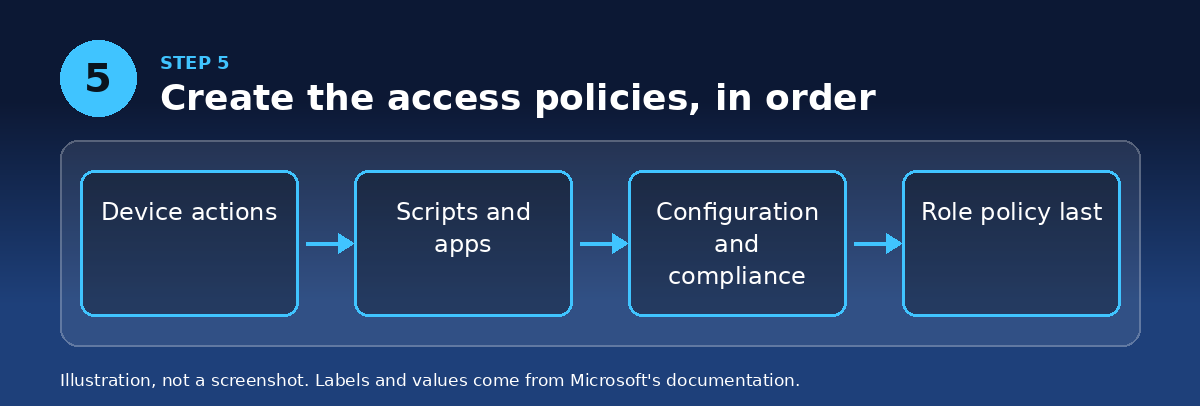
In the Intune admin center go to Tenant administration > Multi Admin Approval > Access policies > Create. Each policy covers one profile type. Name it, choose the profile type, add the approver group under Approvers, then enter a business justification and submit.
The policy itself needs a second admin to approve it, and then you sign back in and select Complete. Intune enforces the policy only after that.
Create them in this order:
- Device actions, which covers wipe, retire and delete.
- Scripts, which covers scripts deployed to Windows devices.
- Apps, which covers app deployments but not app protection policies.
- Configuration policies (settings catalog) and Compliance policies.
- Tenant Configuration, which covers device categories.
- Role-based access control, last.
Do the role policy last. It protects every role change, including the ones you need to make approver assignments, and it can lock you out of fixing them. If that happens, Microsoft’s recovery is to delete the Role policy, wait three to five minutes, add the approver group to a role assignment, and re-create the policy.
Step 6: Test it with a real wipe
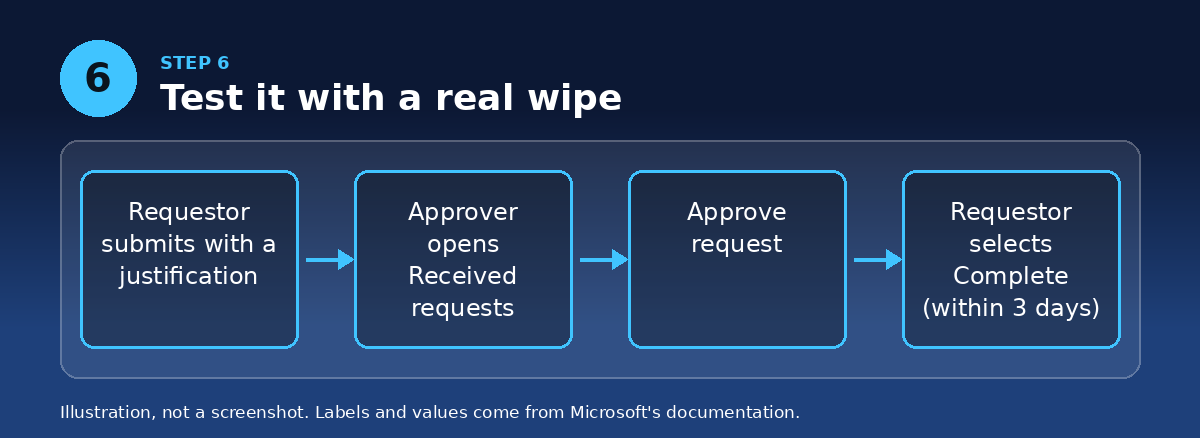
Use a test device. As the requestor, start a wipe and enter a business justification. As an approver, open Tenant administration > Multi Admin Approval > Received requests, read the justification, add approver notes and select Approve request. The requestor then returns and selects Complete. If a request is approved but not completed within three days, it expires and must be resubmitted.
Also try to approve your own request. It should be refused.
Step 7: Add the operational pieces
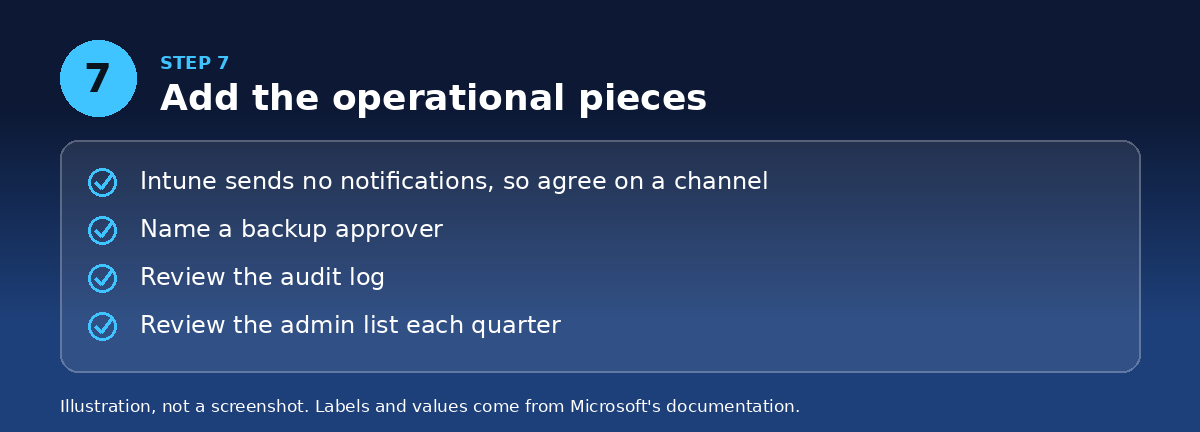
Intune doesn’t send notifications when a request is created or changes status. Agree on a channel where requestors tell approvers, and name a backup approver for holidays. Review the Intune audit log for approval activity, and review the admin list again each quarter. If you have automation that calls Microsoft Graph with app permissions, it’s subject to the same approval on protected resources, so test it. Any exclusion for an app is a gap if that app is compromised, so keep exclusions to a minimum.
Check your work
- A wipe, retire or delete can’t complete without a second person.
- Every admin signs in with a passkey or other phishing-resistant method, and the report-only results are clean.
- Emergency access accounts are excluded and tested.
- Approvers are direct members of a security group that is on an RBAC role assignment.
Common mistakes
- Enabling the Conditional Access policy before admins register a passkey.
- Using a Microsoft 365 group or distribution list as the approver group.
- Creating the Role policy first.
- Having only one person who can approve, so nothing moves on vacation.
My take
The approval step costs a few minutes per sensitive action, and it removes the single stolen credential from the attack path. Start with device actions and the Entra policy this week, and add the rest as you go. The point isn’t to slow admins down. It’s that no one account should be able to erase your fleet.
Sources
- Microsoft Learn: Multi Admin Approval in Intune
- Microsoft Learn: Require phishing-resistant MFA for administrators
- Help Net Security: CISA urges endpoint management hardening
- MDM Monthly, March 2026
- MDM Monthly, August 2025
- MDM Monthly, November 2025
I’m TJ Singh, a managing principal in mobility and endpoint management with more than 20 years of global experience in the device management field.
About me · Start here · Predictions
AI tools may have been used to conduct research for this article.